
ArtCraft for Mac: Install and Start Using PhotoCraft
Find the PhotoCraft macOS download, install the Universal app, handle first-open prompts, and check a layered project on your Mac.
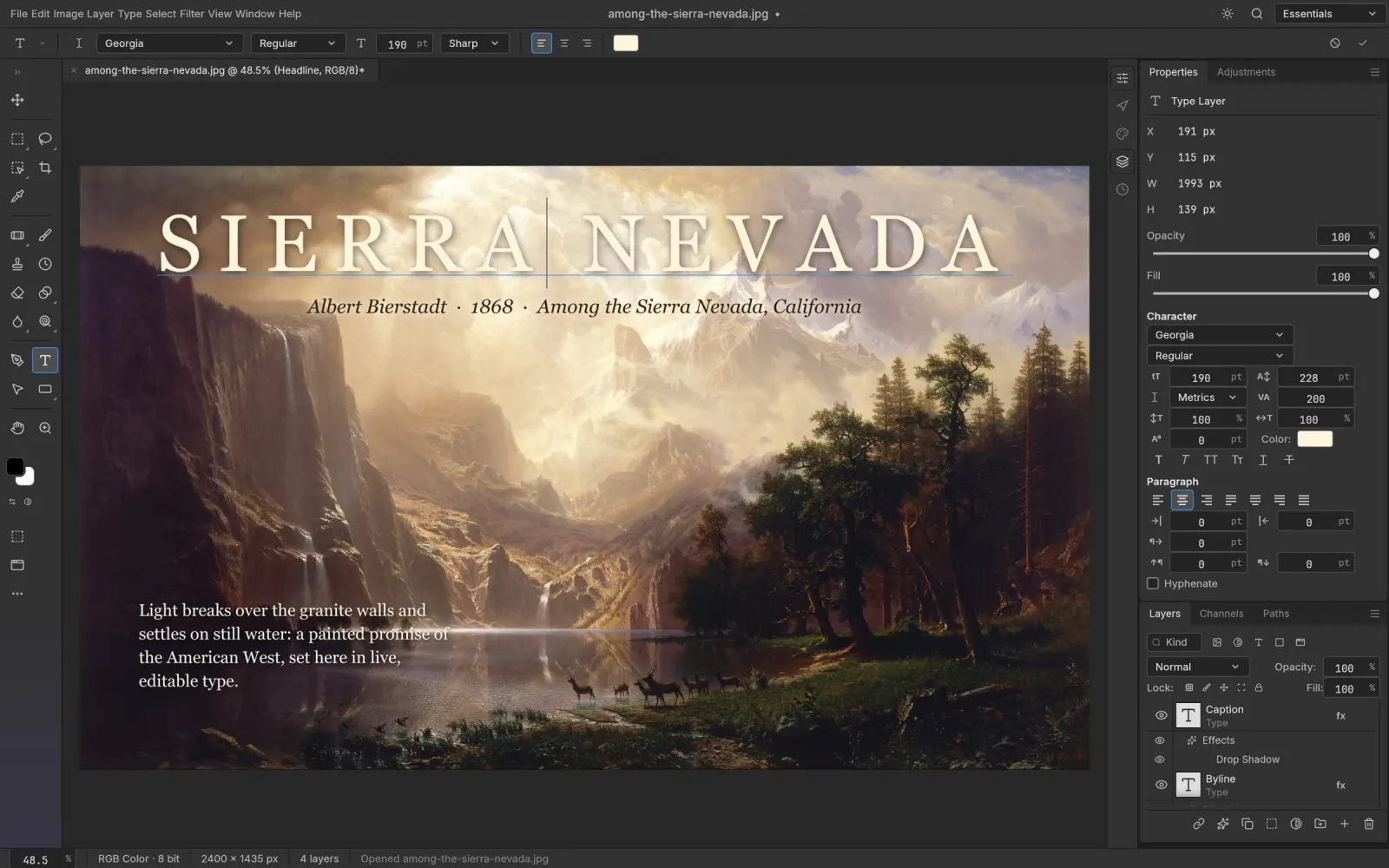
If you are looking for ArtCraft for Mac to edit photos or PSD files, the app to start with is PhotoCraft. ArtCraft also includes other creative tools, so first match the app to your task: PhotoCraft for pixel editing, and VectorCraft for vector illustration.
This guide follows the macOS desktop route: get the correct application, put it in Applications, open a practice file, and check that your working copy survives a save and reopen. The PhotoCraft homepage gives the broader feature overview.
Choose the macOS application, not the CLI
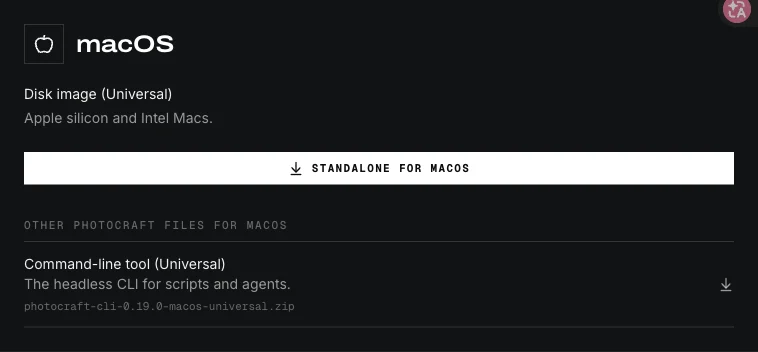
The official PhotoCraft download page lists a Universal DMG for Apple silicon and Intel Macs. It also lists a macOS command-line ZIP. Choose the DMG if you want the graphical editor; choose the CLI only if you specifically intend to automate work from a terminal.
“Universal” describes the processor architectures in the application. It does not promise support for every old macOS version. Check the release notes for the build you select and your Mac's system version before assuming an older machine is supported.
Our download page collects platform links. The official latest release is the place to confirm the current upstream version. If you prefer one manager for several Crafting Apps, choose the ArtCraft Launcher instead of starting with multiple standalone installers.
Install the app and open the installed copy
- Download the DMG from the official source and wait for the download to finish.
- Open it in Finder. Follow the included installation layout to copy PhotoCraft into Applications.
- Wait for copying to finish, then eject the disk image.
- Open the application from Applications. Keep this copy in the Dock if you want a convenient launcher.
- Create a local practice folder and put a copy of a small image in it.
If an existing copy is already installed, save your work and quit it before replacing or updating the app. Keep documents in your project folder, not inside the application bundle or mounted disk image. This makes later updates easier to separate from your artwork.
Understand first-open messages
A message asking whether you intended to open an internet download is different from a message reporting damage or malware. Read the specific wording. Confirm that your download came from the official project and that it finished successfully.
For an unverified developer or notarization warning, Apple documents a per-app Open Anyway option in System Settings → Privacy & Security after an attempted launch, where available. Use that route only when you have established that the app is trustworthy. If the warning says the file is damaged or will harm the computer, stop and investigate or download a fresh official copy. A managed Mac may require your administrator's help.
Test a simple Mac editing workflow
Open the practice image with File → Open. Add a small adjustment and a short text label on a separate layer. Save to a new working file in your practice folder. Reopen it, then export a delivery image and inspect that export in Preview.
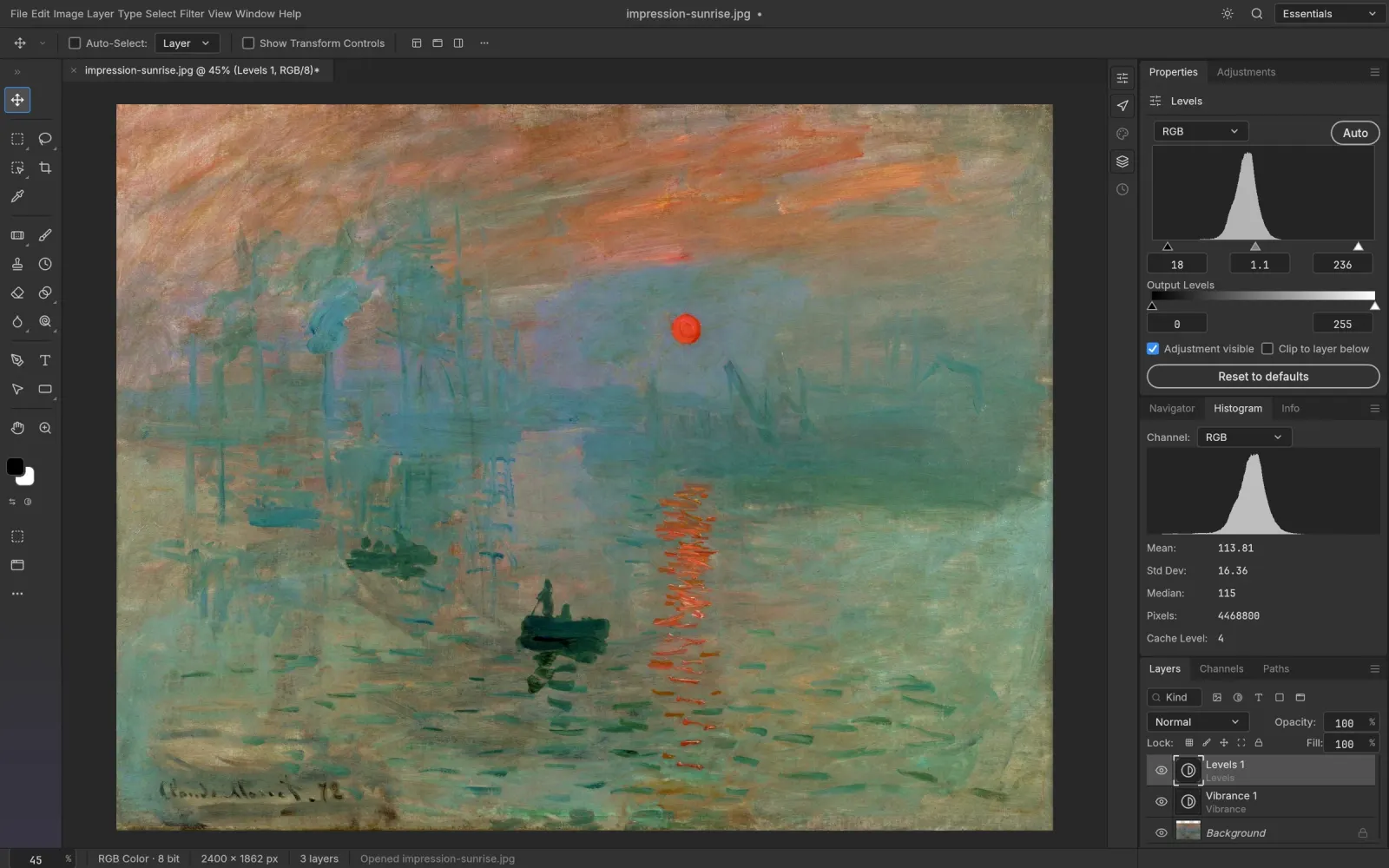
Keep the trial focused. First confirm that opening and saving work. Next check text. Finally test a real PSD copy. If you change the document size, color setup and every layer at once, it becomes difficult to identify what caused a mismatch.
Check PSD handoff and fonts
For work shared with another computer, use a copy containing representative layers and text. Record the fonts used and check whether the receiving computer has them. A changed font can alter line breaks and layout even when the file itself opens.
Compare the original and reopened file at the same zoom. Inspect masks, blending, layer effects and image dimensions. If Photoshop is part of the handoff, open the new PSD there as well. Keep the untouched original until the intended receiving application has passed your check.
Troubleshoot the symptom you actually see
- The app runs only while the DMG is mounted: confirm you copied it to Applications and are launching that installed copy.
- The wrong version keeps opening: check for a second copy in Downloads or another folder before changing anything else.
- A font or layout changes: test a local font and compare the text layer separately from image rendering.
- The app opens but cannot save: try a new file in a local folder you can write to and check free disk space.
- One project fails: test a smaller image first, then note the failing document's size and layer count for a useful report.
For release-specific defects, use the project issue tracker with your OS, app version and a minimal example. For the next editing steps, read the ArtCraft Photoshop guide; for all platforms, use how to install PhotoCraft. You can always return to the PhotoCraft overview.
Ready to try your first edit?
Explore the features or choose a build for your computer. Keep your original files and try a small project first.