
How to Install PhotoCraft on Mac, Windows and Linux
Choose the launcher or standalone build, match your operating system, and verify your first PhotoCraft save and export.
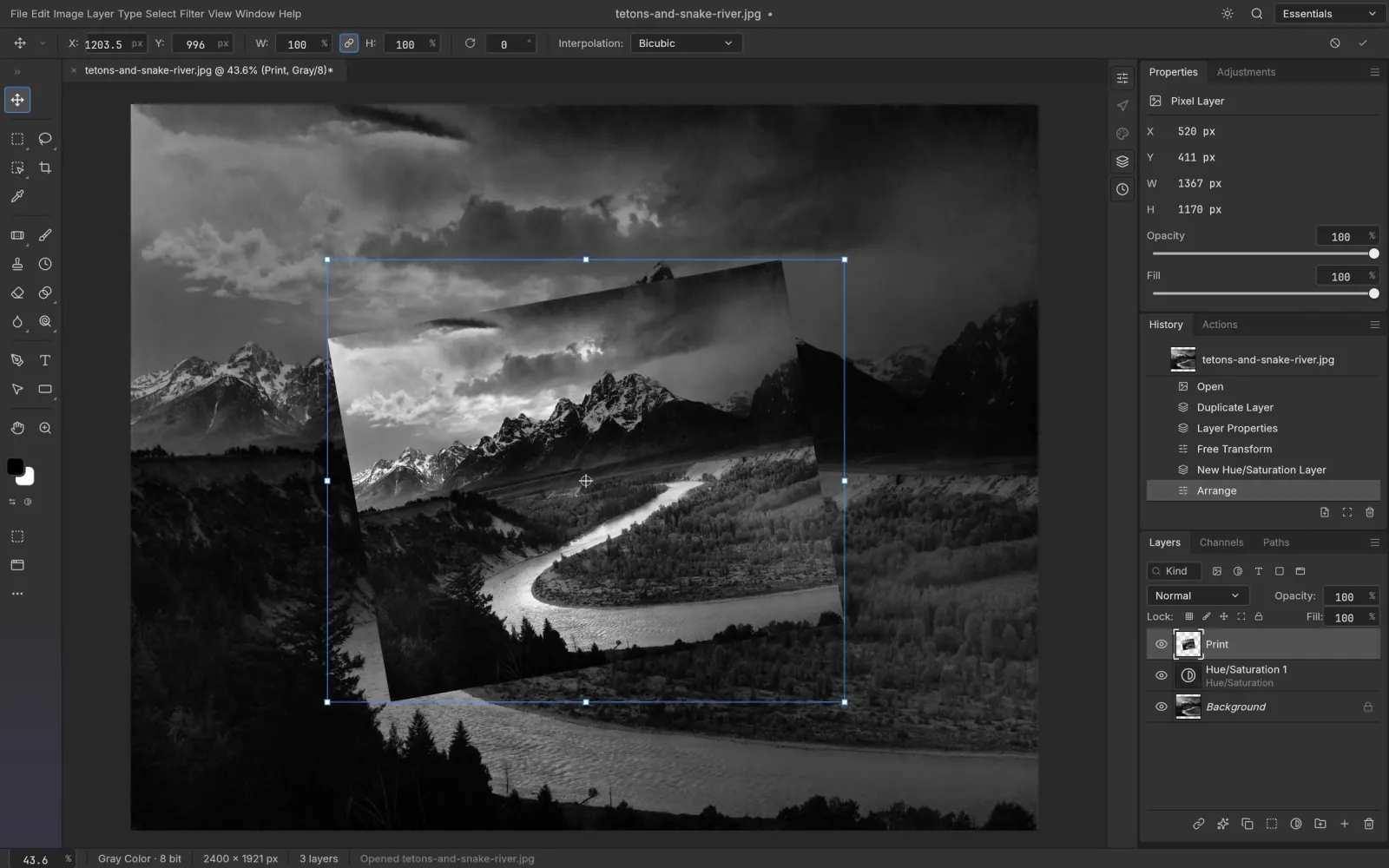
To install PhotoCraft, choose either the ArtCraft Launcher or a standalone desktop package, match it to your operating system and processor, and run a short save-and-export test. You do not need to compile the source code to use an official desktop build.
The PhotoCraft homepage explains the editor. This guide covers package selection and installation; the shorter installation reference provides platform commands, while the download page groups the available files.
Launcher or standalone: choose one starting route
The official download page offers both approaches. The launcher manages Crafting Apps and their updates. A standalone package installs PhotoCraft by itself. Choose the launcher if you want several apps in the family; choose standalone if you prefer to manage this editor separately.
You do not need both for your first trial. If you already have a copy installed, identify how it was installed before adding another one. Otherwise, you may launch an older copy and mistake it for the newly downloaded version.
Pick the file that matches your computer
- Mac: choose the macOS Universal DMG for the graphical application. The separate CLI ZIP is for command-line use.
- Windows: choose the architecture first—x64, ARM64 or x86—then choose the MSI installer or portable ZIP.
- Linux: select a package for your architecture and distribution. Common choices include Flatpak, AppImage, DEB and RPM.
Check the current upstream releases for exact filenames and release notes. A version shown in an illustration is an example, not a permanent download recommendation. The web ZIP is a browser build for hosting; it is not a desktop installer.
Install on macOS
Open the DMG, follow the disk image's installation layout, and copy the application into Applications where instructed. Eject the disk image after copying, then open PhotoCraft from Applications. This avoids repeatedly launching the copy inside the mounted download.
If macOS displays a first-open message, read it before proceeding. For a verification warning, confirm the source and consult Apple's app-opening instructions. A damaged-file or malware alert deserves a fresh download and investigation, not a blanket change to system security. The Mac-specific guide covers these cases and the first project check.
Install on Windows
Open Settings → System → About and inspect the system type. Match the official package to that architecture. For the installer route, open the MSI and follow its prompts. For the portable route, extract the whole ZIP into a writable folder before starting the application inside it.
Keep the extracted files together. Running an executable directly from the ZIP preview or moving just one file can leave required resources behind. See the Windows guide for a more detailed MSI-versus-portable decision and startup troubleshooting.
Install on Linux
Use your distribution's package tools for DEB or RPM packages. With an AppImage, open its file properties and allow execution, or run the following commands from the directory containing the downloaded file. Replace VERSION with the actual version in its filename; these examples are for x86_64.
chmod +x photocraft-VERSION-linux-x86_64.AppImage
./photocraft-VERSION-linux-x86_64.AppImage
For a standalone Flatpak bundle:
flatpak install --user ./photocraft-VERSION-linux-x86_64.flatpak
flatpak run ai.storyteller.photocraft
Review any runtime installation prompt. The upstream installation notes describe the required Flatpak runtime and current Linux behavior. If dragging a file into the window does nothing on Wayland, try File → Open before changing the installation. A drag-and-drop limitation is not necessarily a failed install.
Confirm the installation with a small file
Opening the window is only part of the check. Make a folder for a disposable trial image, open it, add a simple edit, and save under a new name. Close the document and reopen the saved copy. Finally, export a PNG or JPEG and inspect it in another image viewer.
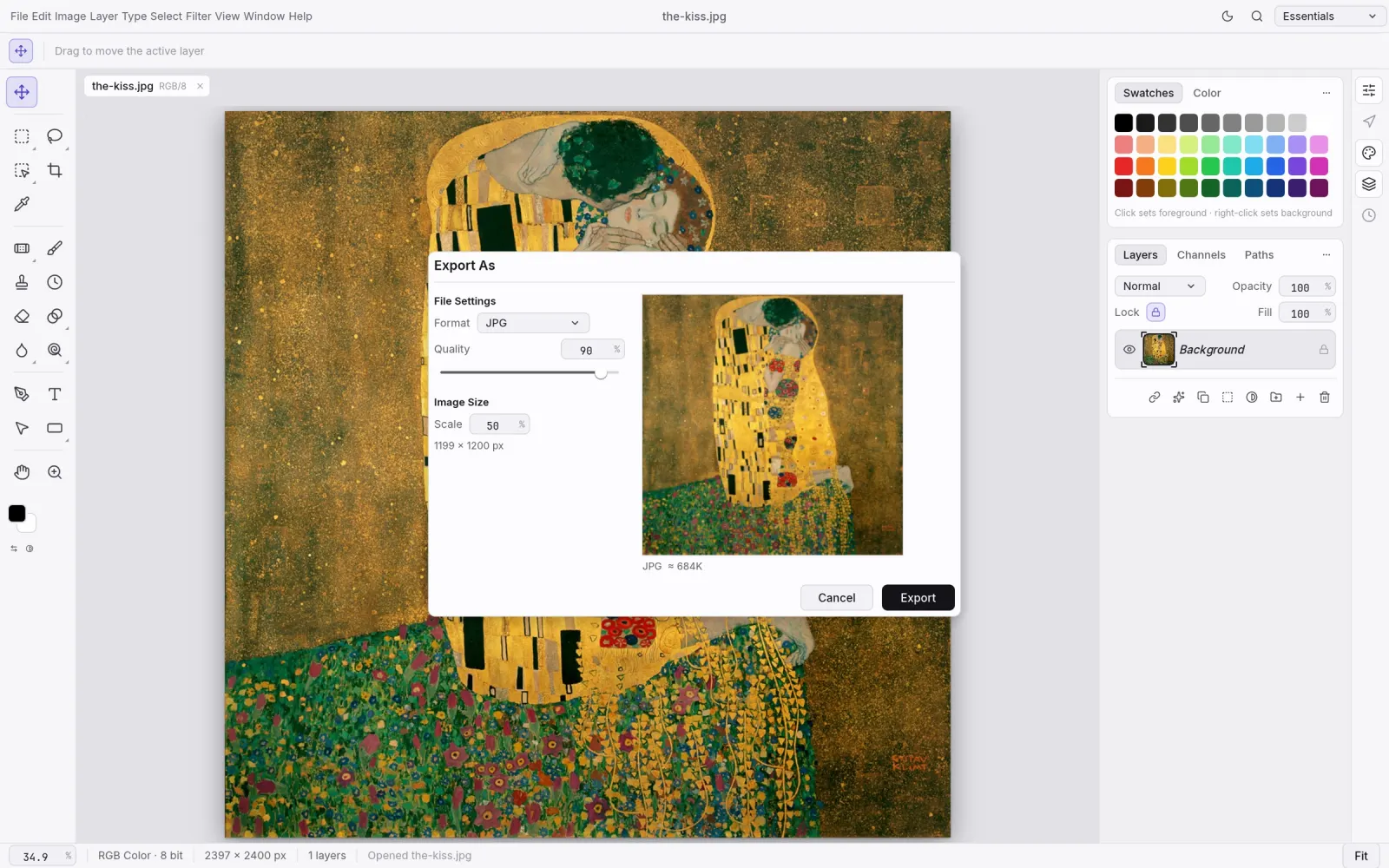
Confirm that the output is in the folder you selected, has the expected dimensions, and opens outside PhotoCraft. This catches file-permission and output-location problems before they affect real work.
If setup does not finish cleanly
Check one variable at a time: download source, architecture, complete extraction, available disk space, then the exact error message. If a download appears incomplete, remove that failed download and fetch the package again from the official release page. Where the release provides SHA256SUMS.txt, compare your file's checksum with the entry for that exact asset.
If the editor still fails, record the application version, OS version, processor architecture and error text for an upstream issue. Do not upload a confidential project as a first troubleshooting step; try a disposable sample first.
Once the save-and-export test succeeds, continue with the first-edit guide or return to the PhotoCraft homepage.
Ready to try your first edit?
Explore the features or choose a build for your computer. Keep your original files and try a small project first.