
PhotoCraft for Windows: MSI, Portable and First-Run Guide
Choose x64, ARM64 or x86, compare MSI and portable downloads, and troubleshoot your first PhotoCraft session on Windows.
For PhotoCraft on Windows, make two choices before downloading: the processor architecture and the installation format. The MSI route is convenient for a normal installed application. The portable ZIP route is useful when you want the program in a folder you manage yourself. Neither choice removes the need to match the package to your computer.
The PhotoCraft homepage explains the editor and its features. Use the download page to find Windows packages, then follow this guide to avoid common first-run mix-ups.
Find your Windows system type
Open Start → Settings → System → About, then read System type under the device specifications. Microsoft's system-type instructions show where to find this information.
- An x64 system normally uses the
windows-x64package. - An ARM-based Windows computer should start with the
windows-arm64build when the release offers it. - A 32-bit x86 system needs the corresponding
windows-x86build, if available and supported by that release.
Do not choose solely from the words “64-bit”: x64 and ARM64 identify different architectures. Check current release requirements separately from this architecture choice, particularly on an older Windows installation.
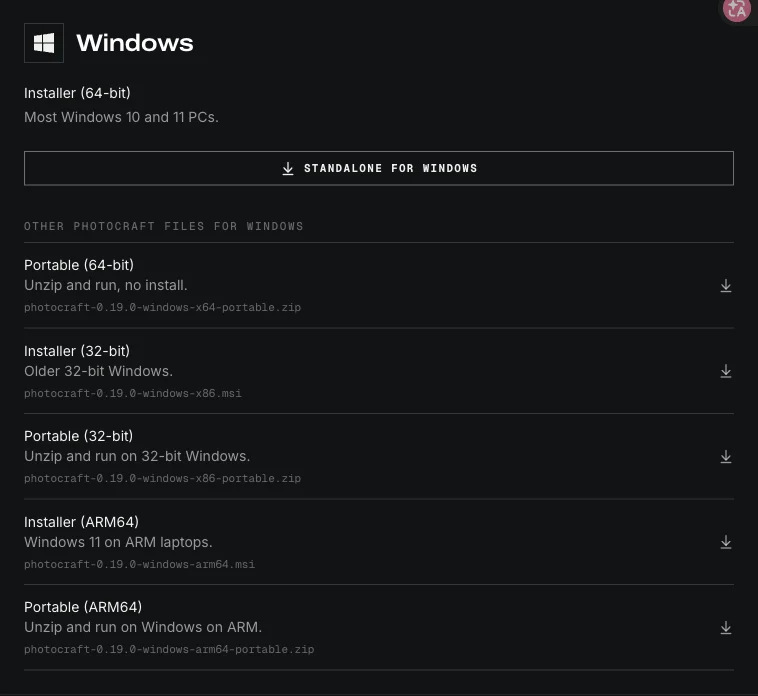
Choose MSI or portable ZIP
Choose MSI when you want an installer to walk you through setup. Choose portable ZIP when you prefer a self-contained extracted folder. On a managed workplace computer, use the method permitted by your administrator; a portable package does not override device policy.
The official release page lists the current assets. Check that the file is for PhotoCraft, Windows and your architecture. The source-code archives are for developers; the web archive is a separate browser build.
For a clean first trial, use one installation route. Keeping an MSI copy and several extracted portable versions can make it hard to tell which executable a shortcut opens.
Install with the MSI package
- Finish downloading the correct MSI from the official project.
- Open it and review the installer prompts, including the destination where offered.
- Finish setup before starting PhotoCraft from the installed shortcut or application location.
- Create a writable folder for practice images and saved documents.
- Open a small image to confirm that the editor starts normally.
If Windows displays a security message, check the source, filename and exact message before continuing. Do not switch off device protection as a general installation step. If your organization blocks installation, resolve that policy with its administrator.
Run the portable package
Use Extract All on the ZIP, choose a folder you can write to, and wait for extraction to finish. Open the application from that extracted folder. Keep the surrounding files and subfolders together rather than moving only the executable to the desktop.
Create a shortcut to the extracted executable if you want easier access. Store documents in a separate project folder so that replacing the portable application folder during an update does not mix program files with your artwork.
Make the first session a save-and-export check
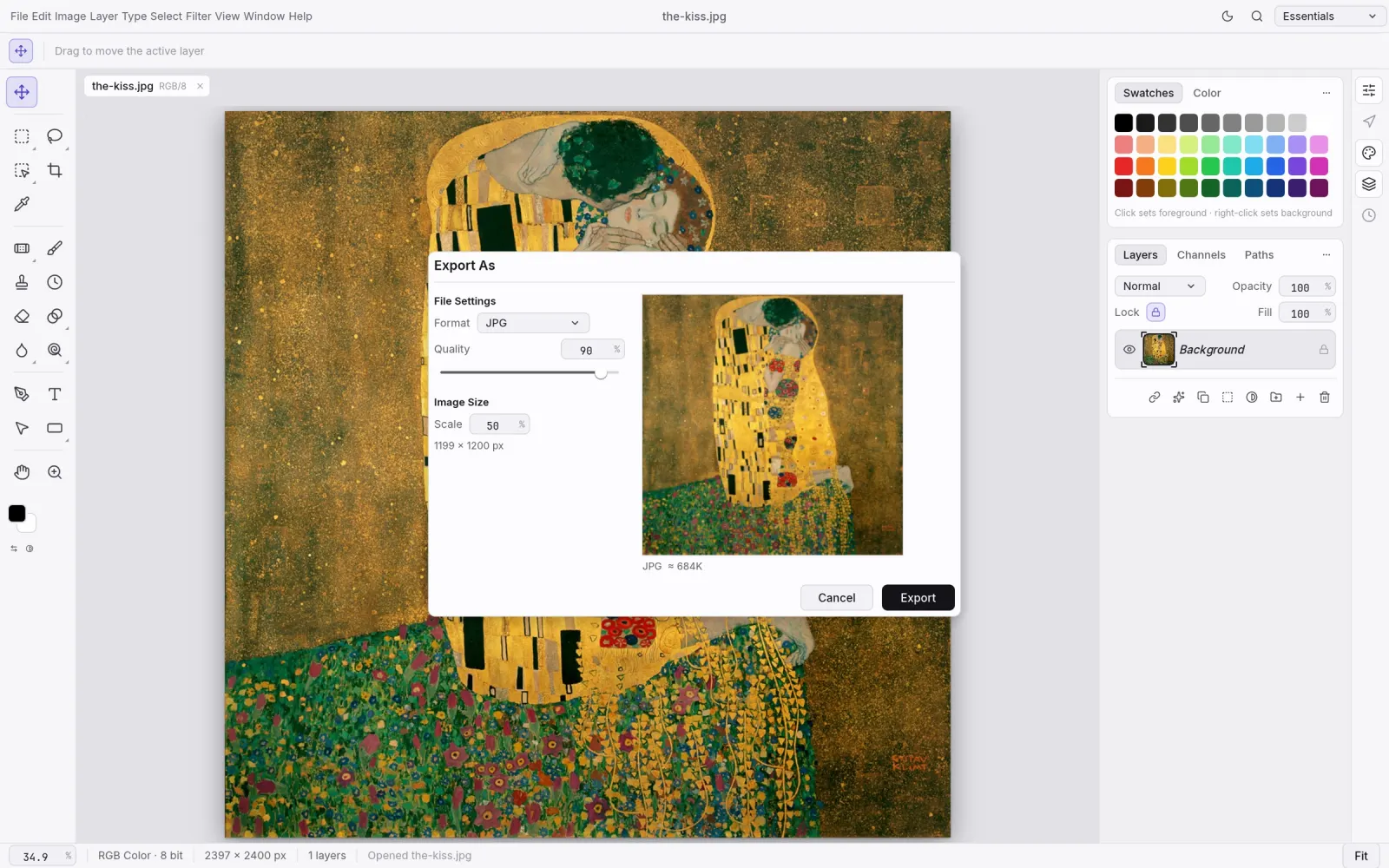
Use a copy of a small PNG or JPEG. Open it, add a simple edit, and save a new working file. Close and reopen the result. Then export an image and open it in another viewer to check dimensions, transparency and appearance.
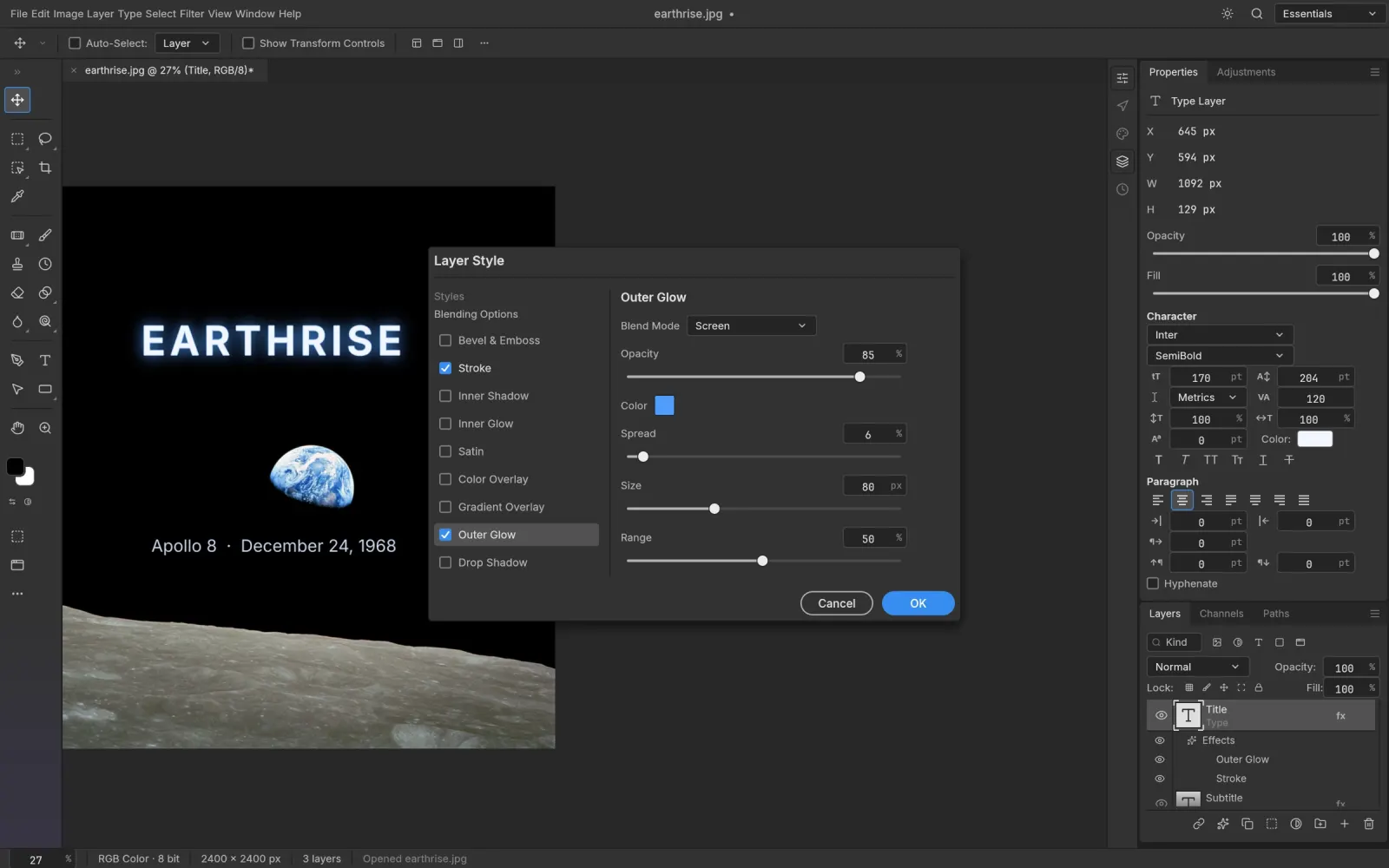
For a PSD project, add a separate check: are the layers still present, does the text use the intended fonts, and do effects look right? Save under a new name. Keep the original until the application receiving the PSD has also been checked.
Troubleshoot common startup problems
Windows says the application cannot run
Recheck x64, ARM64 and x86 rather than repeatedly downloading the same file. Confirm that the release supports your OS version. Note the exact message because an architecture mismatch and a policy block need different solutions.
The portable copy reports missing files
Extract a fresh copy into a new folder. Start it from there with its accompanying files intact. Do not obtain individual DLLs from unrelated download sites to patch an unknown failure.
The window opens but the canvas is blank
Try a small ordinary image to separate a project problem from a rendering problem. Check your graphics driver through the computer or GPU manufacturer's supported update route. If the problem persists, record the GPU model, OS version, app version and whether all files or one file fail.
Saving fails or an older copy keeps opening
Try a writable local project folder and check disk space. For version confusion, inspect the shortcut's target and close other copies before retesting. Change one condition at a time so you know which change helped.
Once your trial works, follow the first-edit guide. For setup on another operating system, read how to install PhotoCraft, or return to the PhotoCraft homepage for the feature overview and downloads.
Ready to try your first edit?
Explore the features or choose a build for your computer. Keep your original files and try a small project first.