
ArtCraft Photoshop Guide: Your First Edit in PhotoCraft
What “ArtCraft Photoshop” means, how to try a layered edit in PhotoCraft, and what to check before moving a PSD workflow.
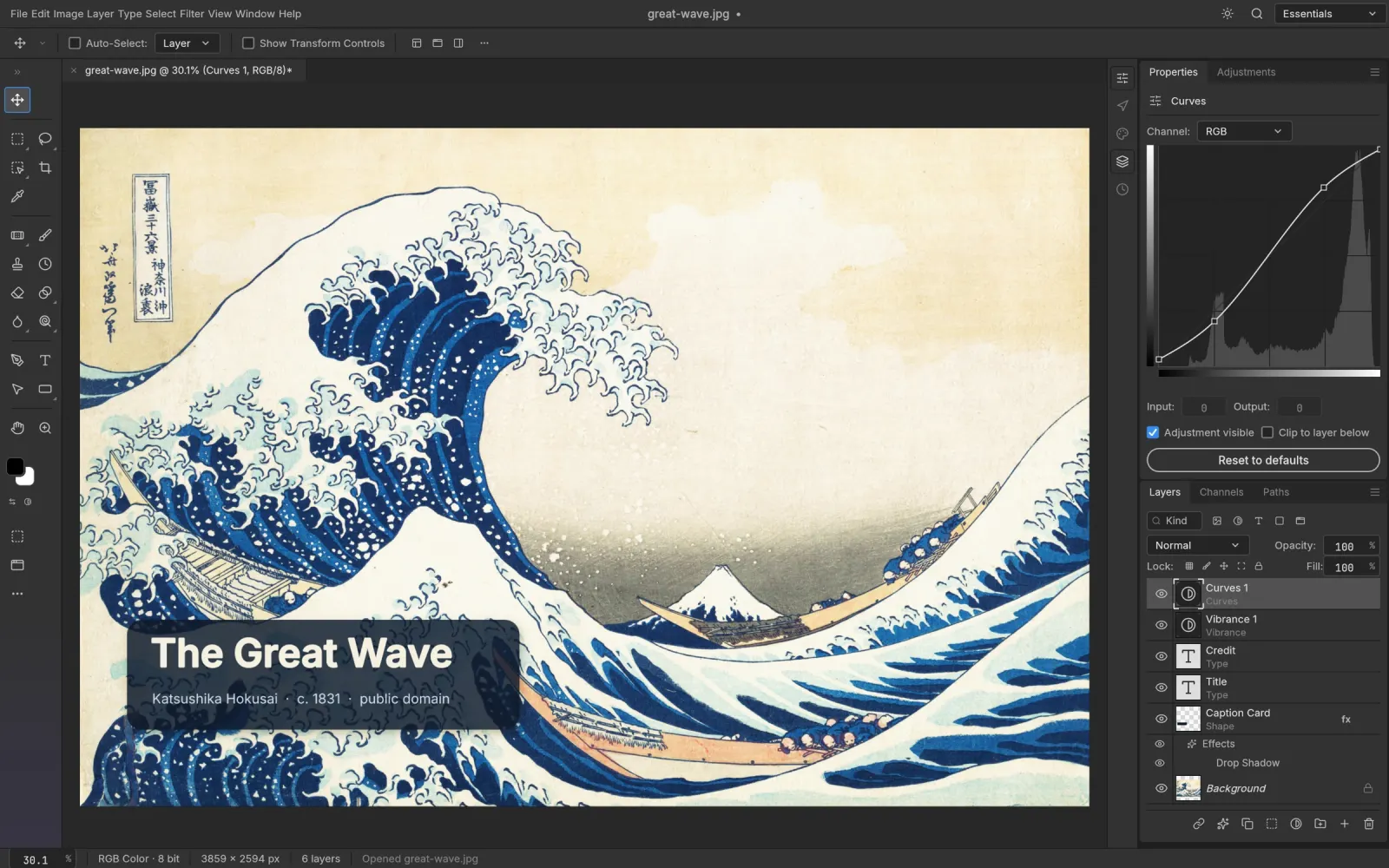
Searching for ArtCraft Photoshop usually leads to PhotoCraft, the image editor in the ArtCraft family. It is a separate open-source application, not an Adobe Photoshop edition, plug-in or activation service. This guide helps you run a small, useful trial: open an image, make an editable adjustment, add text, and check the saved result.
For a product overview, start with the PhotoCraft homepage. If you are deciding which editor fits your work, the PhotoCraft vs Photoshop comparison covers that decision separately.
What are ArtCraft and PhotoCraft?
ArtCraft is the broader creative-app family; PhotoCraft is its pixel-based image editor. The upstream project documents layered editing and PSD support, but also describes the application as early alpha. Familiar controls do not imply that every Photoshop feature behaves identically.
Treat your first session as a project check. A simple photo with a title is a useful starting point. A client document that depends on specialist plug-ins, exact typography or a complex print pipeline should wait until you have checked those requirements on copies.
Prepare a small practice project
- Choose one image you own or may reuse. A JPEG or PNG with a clear subject works well.
- Create a working folder containing the untouched source and a separate trial copy.
- Get a desktop build from the download page. The installation guide explains which package to choose.
- Write down the intended output: for example, a 1600-pixel-wide web image with a short title. This gives you something concrete to verify at the end.
Avoid beginning with your largest layered file. A small document makes it easier to tell a basic editing problem from an unusually demanding project.
Make your first editable adjustment
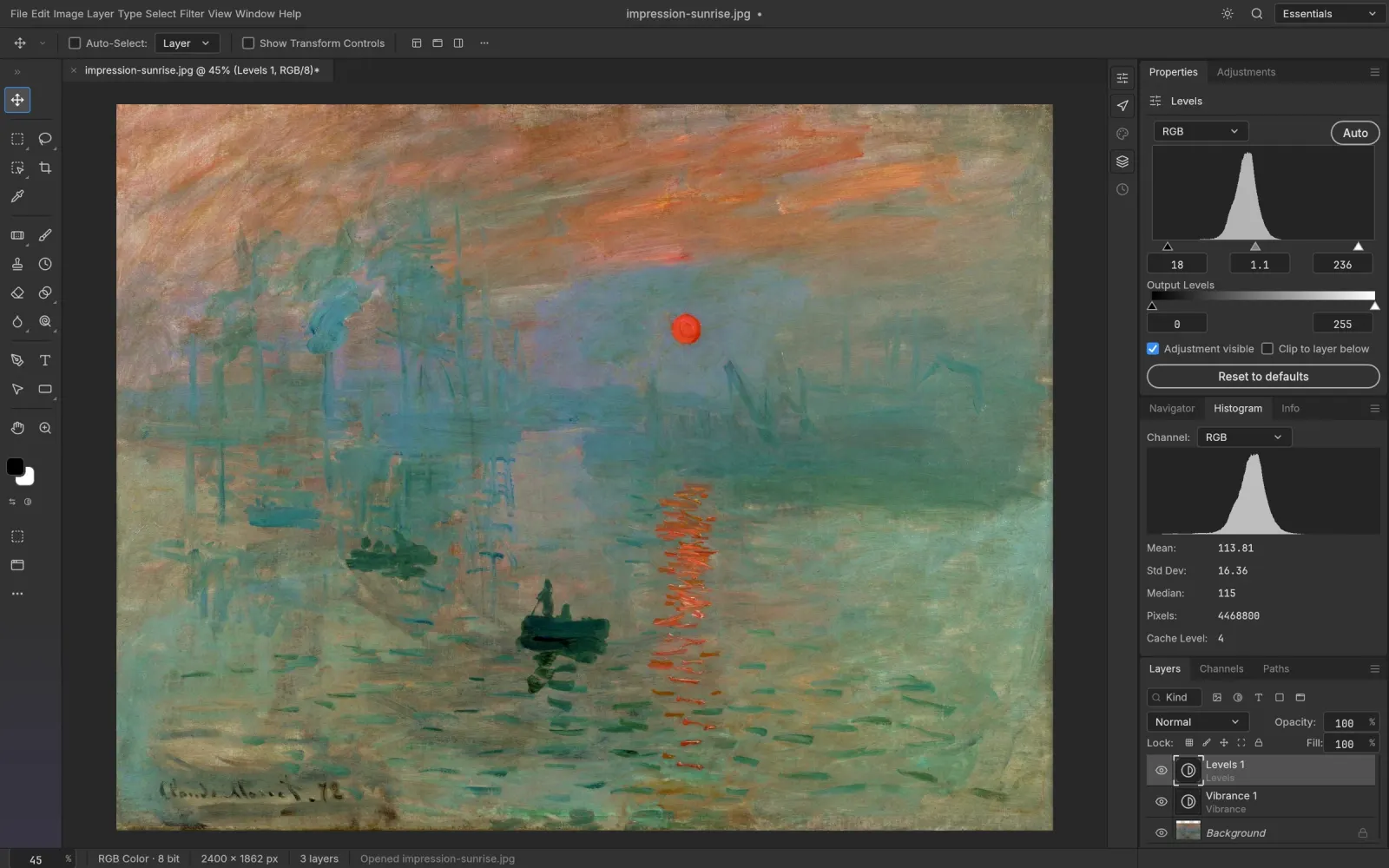
Open the trial image through File → Open. Find the Layers panel, select the image layer, and locate an adjustment such as Levels or Curves. Prefer an adjustment layer when you want to revisit the correction later. The upstream PhotoCraft feature page illustrates this workflow; menu placement may differ by release.
Start with a small brightness or contrast change. Turn the adjustment off and on to compare it with the source. If bright areas lose detail, reduce the adjustment rather than stacking more corrections immediately. Name the layer for its purpose, such as “Lift foreground,” so the document remains understandable next time you open it.
Add text, then try a local correction
Use the Type tool for a short title. Keep the text on its own layer and check that it stays readable against the image. Save a first working copy before experimenting further. To evaluate typography, use a font already installed on your computer and avoid introducing several unfamiliar fonts at once.
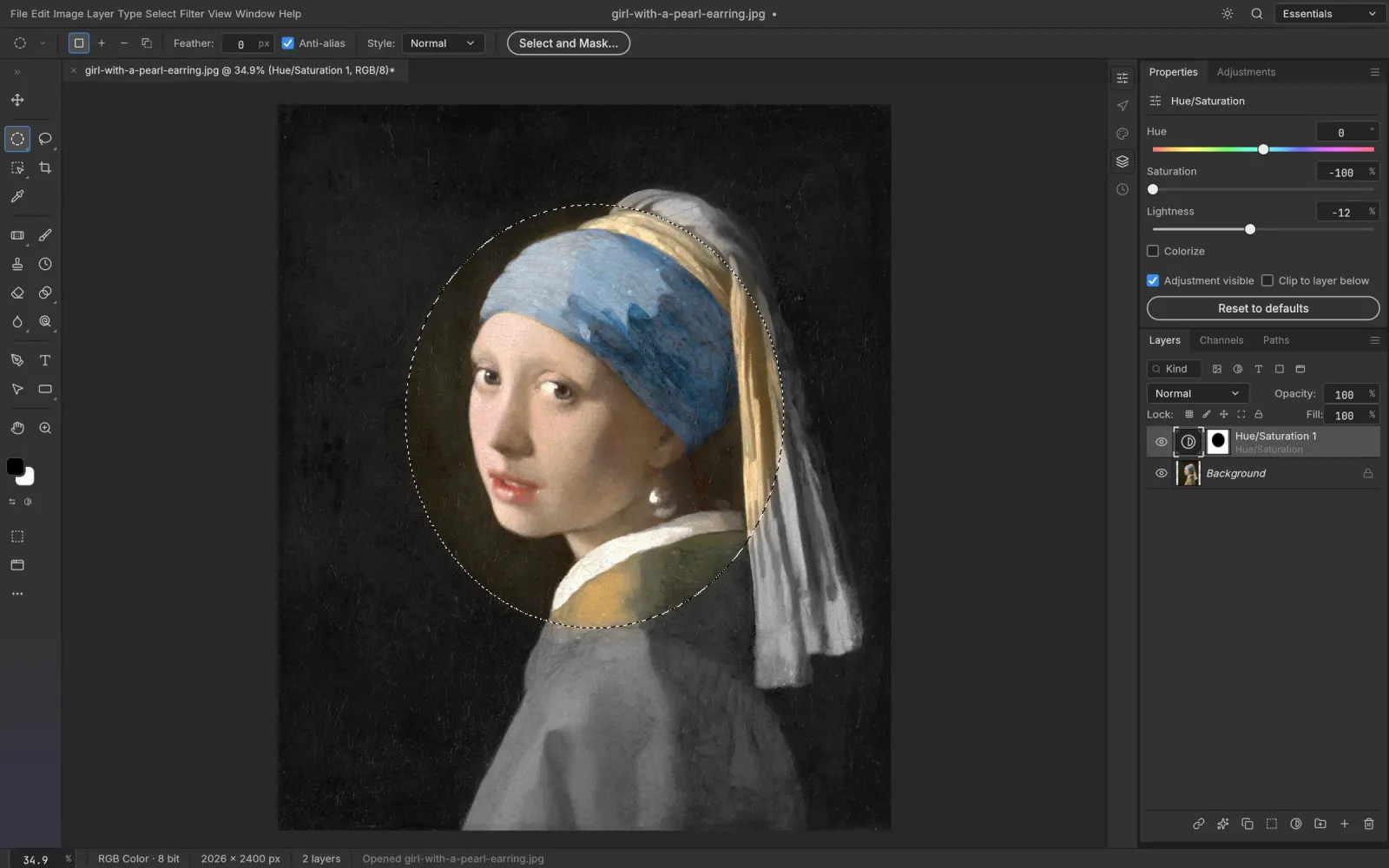
Next, try a mask on a separate adjustment. The purpose is to limit a correction to one part of the image. Select the mask before brushing; painting on the image layer changes pixels instead. Toggle the layer visibility and zoom in on the edge to check for a visible halo. If the result becomes confusing, undo the last change and return to the saved copy.
Save a working file and a delivery image
These are two different outcomes. Your working file should retain the layers you need to edit. Your delivery image should display correctly in the place it will be used. For a PSD handoff, save a new copy instead of replacing the original, then close and reopen that copy.
Check the reopened document in a deliberate order:
- Are the expected layers present and in the right order?
- Does the title use the intended font and line breaks?
- Do masks and layer effects look the same?
- Does the export have the intended dimensions and transparency?
- If someone will open it in Photoshop, does that application show the expected result too?
A file opening successfully is only the first check. Visual appearance and future editability matter as well. Do not assume that a test on one PSD proves compatibility with every file in a production workflow.
Common questions
Is ArtCraft Photoshop free Photoshop?
No. PhotoCraft is its own open-source editor. Searching for an Adobe license, Creative Cloud subscription or Photoshop plug-in requires Adobe's own product and support channels.
Can I move all my Photoshop work at once?
Start with representative copies: one simple image, one text-heavy layout and one layered composition. Record what passes and what needs another tool. Keep your established workflow for requirements you have not verified.
Where should I go next?
Use the Mac guide or Windows guide for platform setup. Return to the PhotoCraft overview to explore features, downloads and the wider ArtCraft family.
Ready to try your first edit?
Explore the features or choose a build for your computer. Keep your original files and try a small project first.