
Working with Large Images in PhotoCraft: A 50-Megapixel Test Plan
A reproducible way to evaluate opening, zooming, exporting, memory pressure, and scratch storage with your own large image files.
Large photographs put pressure on more than the file-opening dialog. Decoding, canvas rendering, undo history, scratch storage, and export can behave differently within the same session. A compressed file's size on disk is not a reliable description of the memory required to edit it.
This is a practical test plan for images above 50 megapixels. That is the input category being investigated, not a measured result or a claim about PhotoCraft's capacity. We have not collected independent timing or memory measurements for this article. The explanations below draw on the official v0.23.0 documentation and show how to gather useful evidence on your own computer.
Prepare a repeatable workload
Choose a photograph you are allowed to use and keep the original unchanged. Record its pixel dimensions, format, bit depth, color mode, and whether it contains layers. If comparing applications, open the same source file in each. A layered PSD and a flattened JPEG are different workloads even when they depict the same photograph.
Record your operating system, PhotoCraft version, processor, available memory, GPU, and the drive containing the source and destination folders. Close unrelated heavy applications, or record which ones remain open. Use a writable local folder first so a slow network share does not obscure the application's behavior.
Check opening and zooming separately
Begin with a fresh application session. Observe the interval from confirming Open to a usable canvas, and note any progress messages or errors. Define “usable” before starting: for example, the image is visible and the application responds to a pan. Do not mix a file-picker delay with a decoding delay.
After opening, inspect the whole-image view, then a close view where fine detail is visible. Pan across several regions and return to an area already visited. Note blank tiles, delayed redraws, input lag, or visible artifacts. These observations describe different symptoms; they should not be collapsed into one statement that the application is “fast” or “slow.”
If you time the steps, keep repeated observations separate and state whether the file was already cached. A warm repeat and a fresh start are different conditions. Do not infer a percentage improvement from impressions alone.
Observe memory and scratch storage
Use Activity Monitor on macOS, Task Manager on Windows, or an appropriate system monitor on Linux. Record the process memory field you are reading, along with system memory pressure or swapping where available. Do not compare differently defined memory counters as if they were interchangeable.
The official scratch-disk documentation explains that native PhotoCraft can move cold pixel tiles to a configured scratch directory while undo history retains tile references. It also distinguishes native scratch storage from the web build's memory limits. This describes the design; it does not predict the memory consumption of your document.
Check that the chosen scratch directory exists, is writable, and has space. Add an edit, duplicate a layer, and undo it while observing the process and disk. Record any status-bar explanation when scratch writes cannot proceed. Avoid deleting scratch files or changing multiple memory preferences during the same run, because that makes the result harder to interpret.
Validate an export, not just its completion
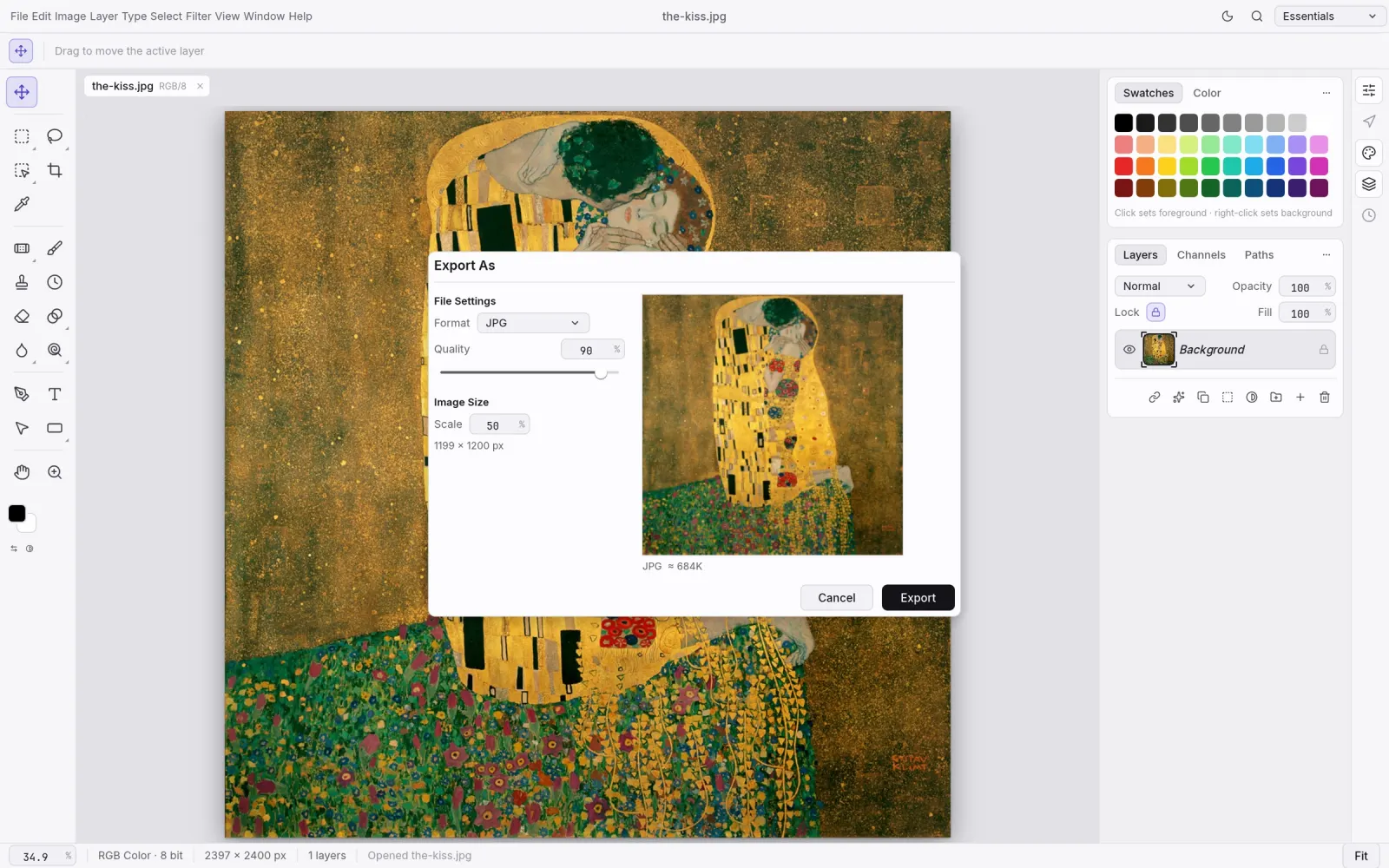
Export a copy to a local destination. Record the output format, dimensions, quality settings, transparency choice, and whether resizing is involved. Exporting the original dimensions and exporting a reduced preview perform different work.
Open the resulting image in another viewer. Check dimensions, edges, transparency, color appearance, and whether fine detail is present. If saving a layered working document, close and reopen that document too. A completed progress indicator is useful evidence, but it does not establish that the saved output is correct.
Turn the observations into a useful conclusion
Keep a log with columns for the action, conditions, observation, and any measurement actually collected. Leave unmeasured fields blank. If the application becomes unresponsive, report the last successful action and whether it recovers; do not invent a completion time.
For a repeatable failure, try a smaller non-sensitive copy to narrow the problem and include the exact release in a report to the official repository. The project's file-format notes can help distinguish a format limitation from a resource problem. Our installation troubleshooting guide covers startup issues that should be resolved before evaluating a large-file workflow.
Ready to try your first edit?
Explore the features or choose a build for your computer. Keep your original files and try a small project first.